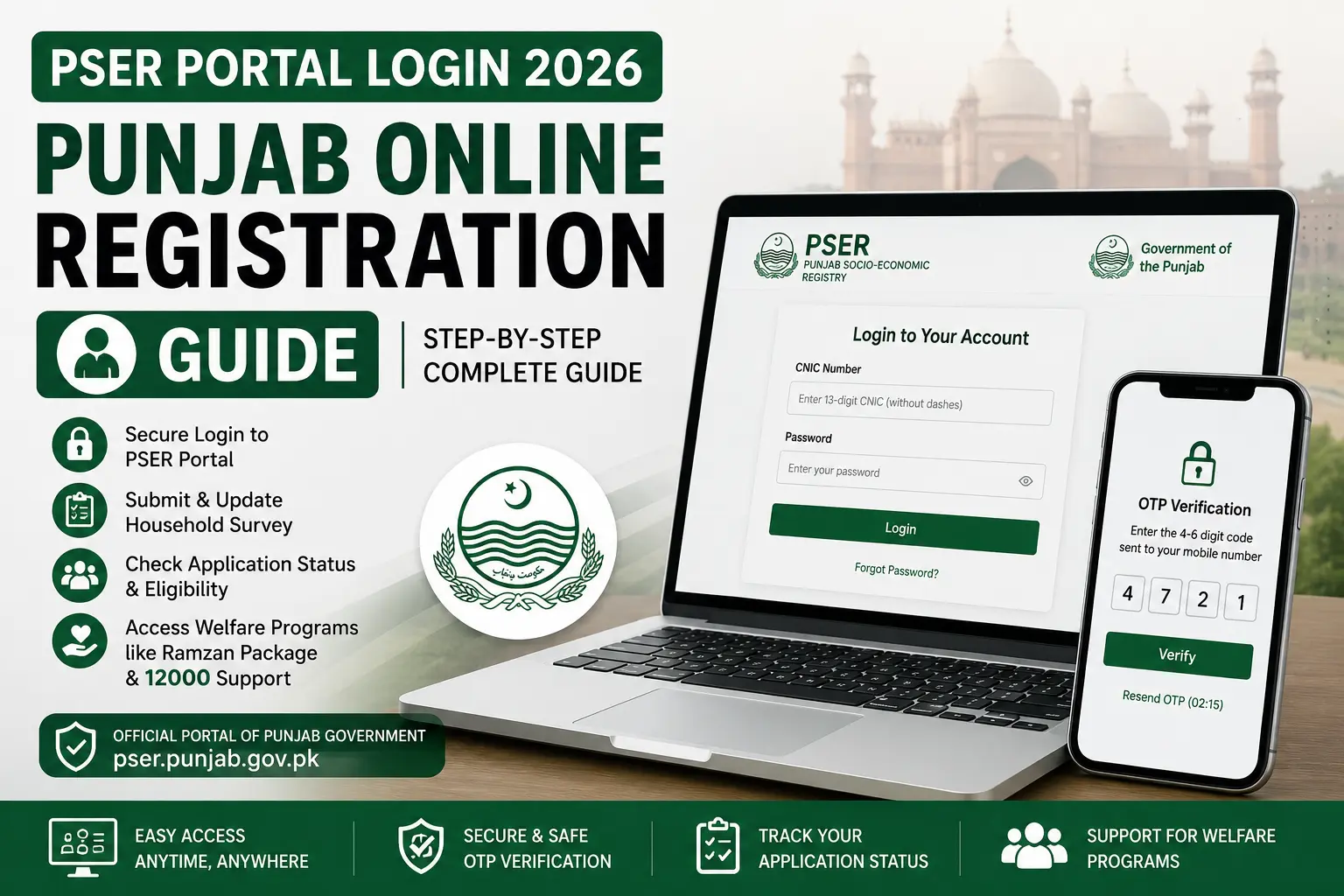
Your PSER portal login is the gateway to everything — submitting your household survey, checking your application status, updating your information, and tracking your eligibility for welfare programmes like the Ramzan Package and 12000 income support.
This complete guide walks you through every aspect of the PSER login process — from accessing the portal for the first time to fixing common errors that prevent people from getting in.
How to Login to PSER Online Registration Portal
The PSER login process is straightforward once you know the exact steps. You will need the CNIC number and password you used when you first created your PSER account. If you have not yet created an account, skip to the “How to Create a New PSER Account” section below.
Step 1 — Visit the Official PSER Login Link
Open your browser — on mobile or desktop — and go directly to pser.punjab.gov.pk.
This is the only official PSER portal managed by the Punjab government. Do not click on login links shared via WhatsApp, Facebook, or any third-party website — these may redirect you to fake pages designed to steal your credentials.
On the homepage, look for the Login button — it is typically displayed prominently in the top navigation or as a main call-to-action on the homepage. Click it to open the login page.
Step 2 — Enter Your CNIC and Password
On the login screen, you will be asked to enter two things:
- Your 13-digit CNIC number — the same CNIC you used when creating your PSER account. Enter it without any dashes or spaces.
- Your password — the password you created during registration. PSER passwords are case-sensitive, so make sure your Caps Lock is off and you are typing exactly as you set it.
Double-check your CNIC before clicking next. A single wrong digit will return a “user not found” error even if everything else is correct.
Step 3 — Verify via OTP
For security, the PSER portal may require OTP (One-Time Password) verification at login — especially if you are logging in from a new device or browser for the first time. If prompted:
- Check your registered mobile number for an incoming SMS containing a 4 to 6-digit OTP
- Enter the OTP in the field shown on the screen
- The OTP is valid for a short window — usually 3 to 5 minutes — so enter it promptly
- If you did not receive the OTP, wait 2 minutes and click Resend OTP. If it still does not arrive, see the troubleshooting section below.
Step 4 — Access Your PSER Dashboard
Once your CNIC, password, and OTP are verified, you will be taken to your PSER Dashboard. From here you can:
- View your application status — Registered, Under Review, Approved, or Rejected
- Complete or update your household survey form if the submission is still pending
- Check which programmes your household has been assessed for
- Update contact information if your mobile number has changed
- Download your registration confirmation if available
Keep your dashboard bookmarked for easy access — you will return to it regularly to track your application progress.
PSER Online Registration Login Punjab Government — Official Link
The official PSER portal login link for the Punjab Government is:
pser.punjab.gov.pk
This portal is operated by the Punjab IT Board (PITB) under the Punjab Social Protection Authority (PSPA). It is the only government-verified platform for PSER registration, login, and application management.
Important points about the official link:
- The URL will always begin with https:// — the padlock icon in your browser confirms it is secure
- The domain always ends in .gov.pk — this confirms it is an official Pakistani government website
- Never log in through a link sent via SMS, WhatsApp, or email unless you initiated the request yourself — phishing links mimicking the PSER portal have been reported
- If the portal is temporarily down for maintenance, wait and try again — do not attempt to use alternative sites during downtime
The Punjab government periodically updates the portal interface, so the exact appearance of the login page may change slightly over time. However, the URL — pser.punjab.gov.pk — remains the permanent official address.
How to Create a New PSER Account (Sign Up / User Registration)
If you have never registered before, you need to create a PSER account first before you can log in. Here is the complete sign-up process:
- Go to pser.punjab.gov.pk and click New Registration or Sign Up
- Enter your 13-digit CNIC number — the family head’s CNIC
- Enter your Nadra-biometric verified mobile number — check via *789# before starting
- Enter your email address if asked — this is optional on some versions of the portal
- Create a strong password — use a combination of letters and numbers that you will remember. Write it down somewhere safe.
- Verify the OTP sent to your mobile number
- Once verified, your account is created, and you are taken to the survey form to complete your household registration
After creating your account, your CNIC number and password become your permanent login credentials for the PSER portal. Keep these safe — do not share them with anyone, including people claiming to be PSER officials.
PSER Login for Ramzan Program 2026
The Ramzan Program 2026 does not have a separate login portal — it is accessed through the same pser.punjab.gov.pk login as your main PSER account. When the Ramzan Package is active, eligible households will see a notification or a specific programme section on their PSER dashboard after logging in.
Here is what to check when logging in specifically for Ramzan Program status:
- Log in to pser.punjab.gov.pk using your CNIC and password
- Navigate to the Dashboard or My Programmes section
- Look for any active notification about the Ramzan Package 2026 or Ramzan Nigehban Package
- If your household has been selected, the dashboard will show your selection status, payment method, and distribution point details
If you do not see a Ramzan Programme section after logging in, it may mean:
- The Ramzan Package distribution has not yet been announced for your district
- Your household’s PMT score was not within the current programme’s selection threshold
- Your application status is still under review, and final selection has not been made yet
For Ramzan Package-specific queries, send your CNIC to 9999 via SMS or call 0800-02345 to check your Ramzan Programme eligibility directly.
Forgot Password — How to Reset PSER Login
Forgetting your PSER password is one of the most common login problems. The reset process is simple as long as you have access to your registered mobile number:
- Go to pser.punjab.gov.pk and click Login
- On the login page, click Forgot Password (usually shown below the password field)
- Enter your 13-digit CNIC number
- Enter your registered mobile number
- Click Send OTP — a one-time password will be sent to your mobile
- Enter the OTP in the field shown on screen
- You will be prompted to create a new password — choose something you will remember and confirm it
- Log in immediately with your new password to confirm it works
If your registered mobile number has changed since you created your account, the standard reset process will not work because the OTP cannot reach your old number. In this case:
- Visit your nearest PSER Registration Centre with your original CNIC
- Staff can manually verify your identity and update your mobile number in the system
- Alternatively, call 0800-02345 and explain the situation — they may be able to assist with identity verification and account recovery
Write your password down in a safe place after resetting it. Many people reset their password multiple times because they keep forgetting it — a simple note kept at home avoids this entirely.
PSER Portal Login Problems — Common Errors and Fixes
Login problems are frustrating but almost always fixable. Here are the most common PSER portal login errors and exactly what to do about each one:
OTP Not Received — What to Do
Not receiving your OTP is the most frequently reported PSER login problem. Work through these solutions in order:
- Wait 3 to 5 minutes — OTP delivery is sometimes delayed due to network congestion, especially during peak hours
- Check your signal — Make sure your mobile has adequate network signal. Move to an open area if you are indoors with poor reception.
- Check DND status — If your SIM is on Do Not Disturb or a promotional message block, transactional SMS like OTPs may be blocked. Contact your network provider to remove DND.
- Verify your SIM is Nadra-verified — Dial *789# to confirm your mobile number is biometrically verified against your CNIC. If it is not, get it verified at a network service centre and try again.
- Try a different network — If you have access to a SIM on a different network, try registering or logging in with that number
- Request OTP again — Click Resend OTP on the portal and wait another 3 to 5 minutes
- Call 0800-02345 — If none of the above work, contact the PSER helpline for manual OTP assistance
CNIC Not Accepted on Login Page
If the portal is not accepting your CNIC, the most common causes are:
- Wrong format — Enter your CNIC as 13 consecutive digits with no dashes, spaces, or hyphens. Example:
3520212345671not35202-1234567-1 - CNIC not registered — If you have never created a PSER account, your CNIC will not be in the system. Go to New Registration instead of Login.
- Expired CNIC — The portal may reject expired CNICs. Renew your CNIC at the nearest NADRA office and then try again.
- CNIC registered under a different mobile number — If someone else registered your CNIC during a door-to-door survey or at a registration centre, the account exists, but you may not have the login credentials. Call 0800-02345 to locate and recover your account.
Portal Showing Error or Not Opening
If the PSER portal itself is not loading or showing an error page:
- Check your internet connection — Try loading another website to confirm your internet is working
- Clear browser cache — Go to your browser settings, clear cache and cookies, then try again
- Try a different browser — If you are using one browser, try Chrome, Firefox, or your phone’s default browser
- Try a different device — If the portal is not loading on your phone, try a computer, or vice versa
- Check for portal maintenance — The PSER portal undergoes scheduled maintenance periodically. If the portal shows a maintenance notice, wait a few hours and try again.
- Disable VPN — If you are using a VPN, disable it. Government portals sometimes block VPN traffic.
- Call 0800-02345 — If the portal has been down for more than 24 hours, call the helpline to confirm whether there is a known outage and when it is expected to be resolved.
Frequently Asked Questions — PSER Login
What is the PSER online registration login link for 2026?
The official PSER online registration login link 2026 is pser.punjab.gov.pk — this is the only verified Punjab government portal for PSER login and registration. There is no separate login URL for 2026 — the same portal address has been used since the programme launched and continues to be the official access point.
Can I use PSER login on mobile?
Yes — the PSER portal is fully mobile-compatible and works on any smartphone browser, including Chrome, Firefox, Samsung Internet, and any default mobile browser. You do not need to download a separate app.
Conclusion
Your PSER portal login is not just a one-time step — it is your permanent access point to every government welfare programme the Punjab government runs through the PSER database. From checking your application status after submission to tracking your Ramzan Package selection to updating your household information when circumstances change — everything goes through your PSER account at pser.punjab.gov.pk.
The most important things to remember:
- Always use the official portal link — pser.punjab.gov.pk — and never log in through third-party links
- Keep your CNIC number and password safe and written down somewhere secure
- Make sure your registered mobile number stays active and Nadra-verified — it is the only way to receive OTPs and programme notifications
- If you ever face a login problem — wrong password, OTP not received, portal not opening — the solutions are all covered above. Work through them step by step before assuming something is permanently wrong.
- When in doubt, call the free helpline 0800-02345 — trained staff are available to help you recover your account, reset your password, or guide you through any login issue
Registering in PSER and keeping your account accessible is the single most important step your household can take to ensure you are considered for every welfare programme the Punjab government announces — now and in the future. Do not let a forgotten password or a login error stand between your family and the support it deserves.